Category: Civil Engineering

  • Diagonal & Chevron Line Marking in MicroStation/OpenRoads – Quick Productivity Tip

    Diagonal & Chevron Line Marking in MicroStation/OpenRoads – Quick Productivity Tip

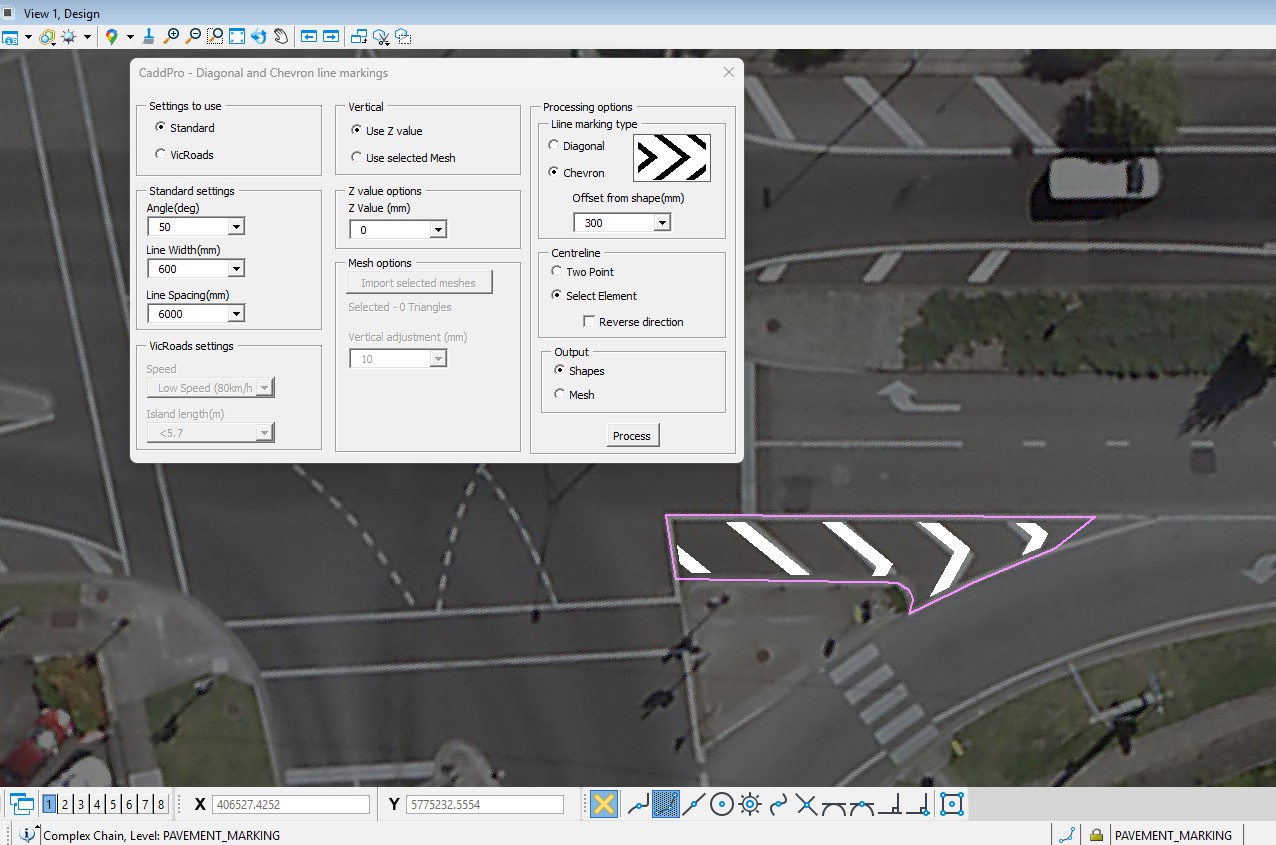
    If you spend time drafting patterned linework like chevrons or diagonals around shapes, you’ll know how tedious it can be to place every line manually. In this video tip, we demonstrate the Diagonal & Chevron line marking tool — a quick way to generate consistent, patterned lines inside or around any closed shape.

    Here’s why it’s worth adding to your toolkit:

    • Instant pattern generation: Select your shape and define options once; the tool takes care of the rest.
    • Handles curves easily: On curved edges, just supply a centreline and let the tool create properly aligned marks without extra effort.
    • Context-aware drafting: Whether you’re using aerial imagery for context or just basic design linework, the tool adapts seamlessly.

    This isn’t a flashy add-on — it’s a productivity boost that cuts repetitive work, ensures accuracy, and lets you focus on the engineering instead of manual drafting.

    👉 Watch the video to see it in action, then try it in your next project. If you find it helpful, follow us for more practical Bentley tips that help you work faster and smarter.

  • 5 Practical Tips for Smoother Vertical Alignment Workflows in OpenRoads

    5 Practical Tips for Smoother Vertical Alignment Workflows in OpenRoads

    Vertical geometry is one of those areas where small gaps in workflow knowledge can lead to frustrating edits, unpredictable behaviour, or unnecessary rework. To help streamline day-to-day work, here are five simple but genuinely useful techniques for managing vertical alignments more confidently in OpenRoads Designer.

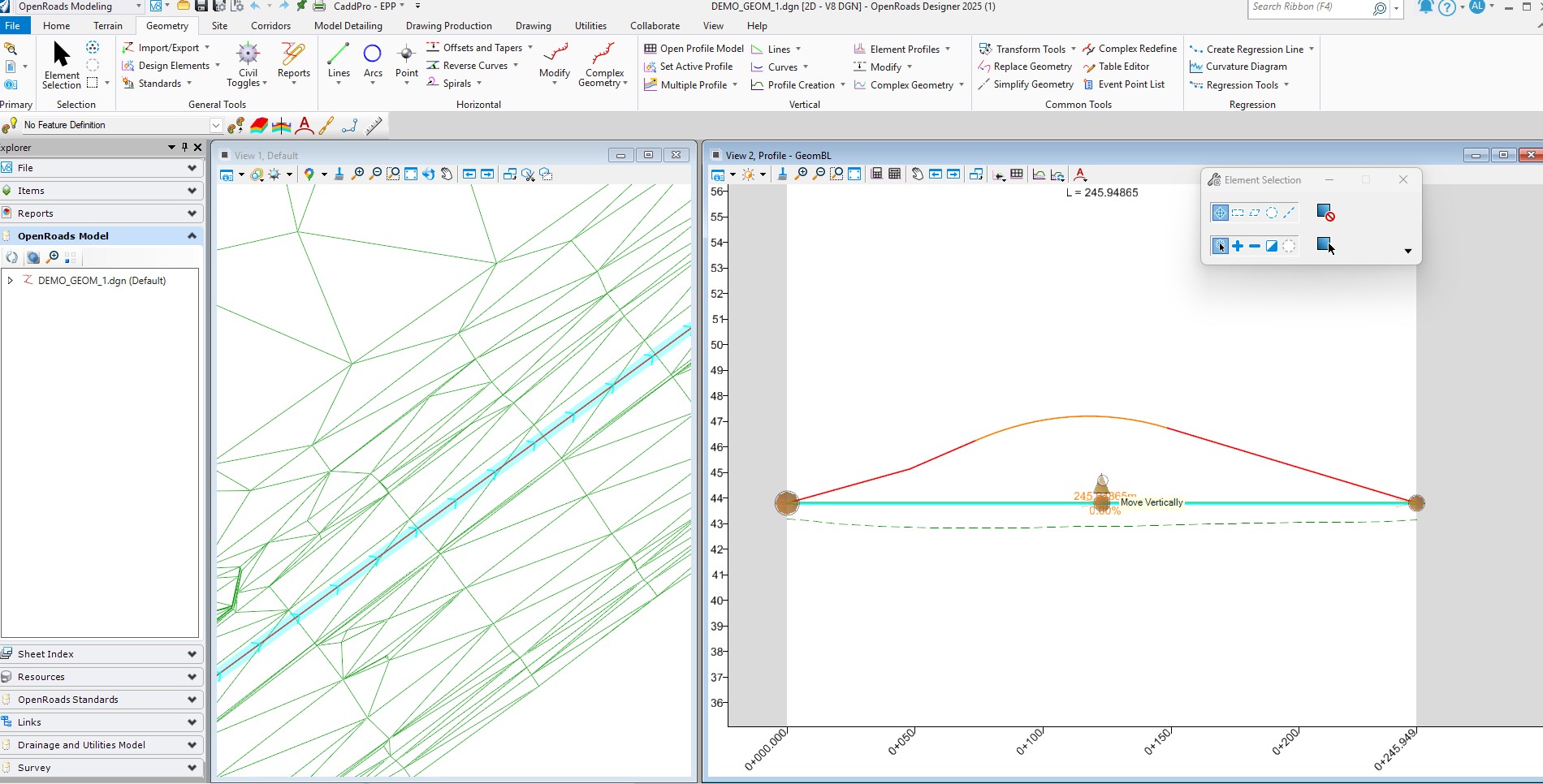
    1. Opening a Profile from Project Explorer
    Most users open a profile by selecting the alignment and waiting for the profile icon to appear. That works, but it’s not the only method. You can also navigate directly to the alignment in Project Explorer and right-click to open the profile view. This approach is especially useful when the hover icon doesn’t appear or when working in busy models.

    2. Placing Lines by Distance or Slope
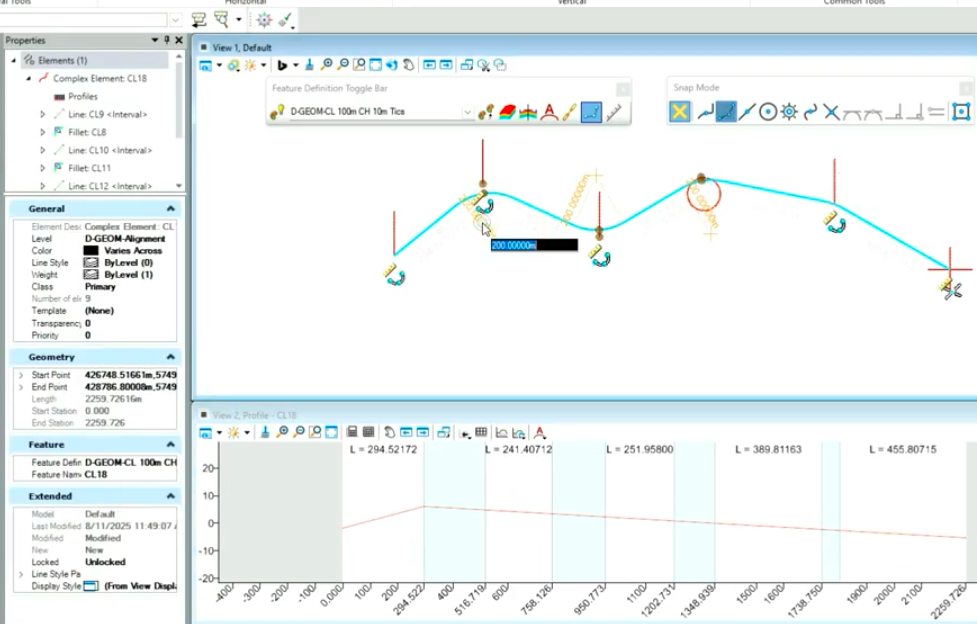
    When placing vertical lines, you can key-in the desired value and lock either slope or distance. It’s a simple but precise way to control vertical geometry without extra steps.

    3. Ensuring Geometry Is Properly Connected
    If modifying a vertex gives unexpected results, the verticals may not be fully connected. Complex them together, try the modification again, and use the table editor if needed. Once connected correctly, edits become predictable and stable.

    4. Inserting a Vertex Graphically
    Using the Insert Vertex tool from the Home tab allows you to place new vertices directly in the profile view. It’s quick, visual, and avoids unnecessary dialog navigation.

    5. Matching Start and Finish RLs
    For islands or any vertical loop that needs to begin and end at the same RL, place horizontal lines at both ends and move the relevant vertices to match. This keeps the geometry clean and consistent.

    These small, practical techniques help minimise rework, reduce alignment issues, and keep vertical workflows efficient.

    5 vertical alignment tips

    Adam Lambert

    ​Kirk Kulbe​

  • Tired of re-snapping to the same points over and over?Introducing a feature that can save you a surprising amount of time — Persist Snaps.

    Tired of re-snapping to the same points over and over?Introducing a feature that can save you a surprising amount of time — Persist Snaps.

    Persist Snaps allow you to retain and reuse precise snap locations across multiple commands, effectively creating temporary reference points in your design file.
    They improve drafting efficiencyconsistency, and accuracy — especially in complex layouts or when working from a consistent set of key locations.

    They let you “lock in” your snap locations across multiple commands, so when your geometry shifts, your connected elements stay coordinated. It’s like giving your design a set of temporary reference points that remember where everything belongs.

    In this short video, I’ll show you where to find the toggle, how to set your preferences so it sticks between sessions, and a few quick checks to see it working in both plan and profile views.

    Simple trick, big impact — fewer clicks, fewer mistakes, cleaner geometry.

    Watch the clip and see how it works in your own files.

  • Color Triangles by Slope with Engineering Productivity Pack (EPP)

    Color Triangles by Slope with Engineering Productivity Pack (EPP)

    Discover how our Engineering Productivity Pack (EPP) enhances terrain analysis in OpenRoads Designer with the Color Triangles by Slope feature. This tool lets you assign slope values to individual triangles and color-code them based on a custom spreadsheet—think of it as a dynamic Excel lookup table. Define ranges (e.g., 0-0.5% as color 4 on level “type 1”, 5-5.38% as color 10 on “type 10”), and watch your terrain come alive with clarity. Since triangles are separated onto distinct levels, you can leverage standard CAD tools for additional operations like area calculations. Perfect for quick, precise slope analysis, this functionality is now showcased in our latest video.
    Check out the video to see it in action and feel free to contact us via the Contact form.

  • CaddPro Unveils New Website — A Key Step in Global Expansion and Community Growth for Engineering Productivity

    CaddPro Unveils New Website — A Key Step in Global Expansion and Community Growth for Engineering Productivity

    If you’ve worked in civil design or infrastructure delivery, you know that productivity can make or break a project. For decades, CaddPro has been focused on one thing—helping engineers and drafters work smarter with Bentley tools.

    Now, that mission has a new home.

    We’re excited to announce the launch of our brand-new website: www.caddpro.com.au — a fresh, modern hub built to connect with a global audience and showcase what’s next for CaddPro and our flagship product, the Engineering Productivity Pack (EPP).

    A Milestone in Our Global Growth Journey

    This website launch marks a major milestone in CaddPro’s rebranding and global expansion strategy. It follows the recent creation of our LinkedIn Company Page and the approval of our LinkedIn Product Page for EPP, both designed to strengthen how we share updates, insights, and innovations with the broader engineering community.

    For over 40 years, we’ve been deep in the trenches of civil design—building custom tools, solving geometric challenges, and finding faster ways to get drawings done right. From bridge geometry to stormwater pits, our tools have always been built for real engineers doing real work.

    Now, we’re taking that same hands-on philosophy global.

    Why a New Website Now?

    The new website isn’t just a facelift. It’s part of a complete communication ecosystem that connects engineers, drafters, and organizations worldwide. We wanted a platform that’s as clear, efficient, and user-friendly as the tools we build.

    Here’s how it all comes together:

    • The Website:
      Our new site is the central hub for everything CaddPro—product information, case studies, tutorials, and insights about Bentley-based productivity. It’s designed to help visitors quickly understand what we do, how we help, and where to find the right tools for their work.
    • The LinkedIn Company Page:
      This is where you’ll find general updates, stories from the field, and productivity tips for Bentley solutions. It’s about connecting with our peers, sharing knowledge, and highlighting how technology can make engineering better.
    • The EPP Product Page:
      This page focuses purely on the Engineering Productivity Pack (EPP)—our collection of 250+ time-saving tools for Bentley users. It’s where users can follow for feature announcements, version updates, enhancement discussions, and community insights.

    Together, these channels create a single, global communication framework designed to keep our customers—and the broader Bentley design community—connected and informed.

    Built from the Ground Up—Just Like Our Tools

    Our new site reflects who we are: engineers who love solving problems. The Engineering Productivity Pack (EPP) was born from decades of real project experience using Bentley tools like MicroStation, OpenRoads, OpenBuildings, and OpenRail.

    We’ve spent years helping civil designers reduce manual drafting, streamline annotation, and automate geometry—all while ensuring compliance with design standards and improving accuracy.

    That same mindset guided the website build: simple, purposeful, and built to last.

    You’ll find:

    • Clear navigation to explore our tools and solutions
    • Case-based examples showing how EPP accelerates workflows in bridges, roads, and rail projects
    • Straightforward calls to action to connect, request demos, or learn more

    Every page reflects our philosophy—cut the noise, show the value, and make life easier for engineers.

    A Platform for a Global Community

    What began as an Australian innovation for Bentley users is now attracting attention from across the world. With our 2024 Bentley Partner Excellence Award (Developer of the Year), CaddPro has already been recognized for delivering meaningful productivity solutions that complement Bentley’s own ecosystem.

    This website takes that recognition and gives it a platform to grow—inviting collaboration, feedback, and community input from engineers in every region.

    We want this to be more than a showcase; we want it to be a conversation space. That’s why we’ve built clear paths for users to contact us, share ideas, and suggest enhancements to EPP.

    What’s Next

    The launch of www.caddpro.com.au is just the beginning. Over the coming months, we’ll be expanding with:

    • New feature spotlights and video demonstrations
    • Customer stories from global engineering teams
    • Updates from our ongoing Bentley collaborations
    • Insights into civil design best practices

    We’re proud of where we’ve come from—four decades of solving productivity challenges for engineers—and we’re even more excited about where we’re headed.

    So whether you’re a MicroStation veteran or just getting started with Bentley Solutions, we invite you to be part of this next chapter.

    Join the Journey

    Here’s how you can get involved:

    1. Visit the new website: www.caddpro.com.au
    2. Follow our Company Page: Get notified and stay up to date with CaddPro’s news, insights, Bentley community tips and engineering stories.
    3. Visit the EPP Product Page: Stay up to date about tool updates, conversations and new releases.

    This is an exciting step forward—not just for CaddPro, but for everyone looking to make engineering design faster, smarter, and more enjoyable.

    We’re thrilled to share it with you.

    Visit us. Follow us. Let’s engineer productivity—together.

  • Bentley “Ruled” Relationships

    Bentley “Ruled” Relationships

    Curious how OpenRoads’ “ruled” relationships can supercharge your tangential element construction? My latest video tip guides new users through creating these elements, simplifying basic geometry tasks. OpenRoads’ dynamic “ruled” connections keep your alignments linked and editable, making it easier to build and adjust complex horizontal geometry or grade from a centerline. This quick, beginner-friendly tutorial shows how to leverage these relationships for smoother workflows and better productivity, helping you get the most out of your Bentley tools. I’ve checked—this tip brings a unique angle to OpenRoads’ capabilities. Watch it, share with your team, and drop your feedback! More tips coming soon.